Introduction
DigiShakti Password Reset: Bhool Gaye Toh Kya Karein?
उत्तर प्रदेश सरकार की DigiShakti (स्वामी विवेकानंद युवा सशक्तिकरण योजना) के तहत अब तक 1 करोड़ से अधिक छात्रों को टैबलेट वितरित किए जा चुके हैं। मुख्यमंत्री योगी आदित्यनाथ द्वारा शुरू की गई यह महत्वाकांक्षी योजना डिजिटल शिक्षा को हर छात्र तक पहुँचाने का माध्यम बन रही है। वर्ष 2026 में भी यह योजना सक्रिय है और सरकार का लक्ष्य अगले चरण में 25 लाख और टैबलेट वितरित करना है।
DigiShakti पोर्टल पर लॉगिन की वास्तविकता
बहुत से छात्र भ्रमित रहते हैं कि वे DigiShakti पोर्टल पर खुद लॉगिन कैसे करें। आपको यह समझना होगा कि:
- लॉगिन आईडी की आवश्यकता नहीं: छात्र को स्वयं पोर्टल पर लॉगिन करने की आवश्यकता नहीं होती।
- e-KYC का महत्व: यह पूरी प्रक्रिया आपके कॉलेज या संस्थान द्वारा आपके कॉलेज आईडी/एनरोलमेंट नंबर के माध्यम से की जाती है।
- सत्यापन: छात्र को केवल समय-समय पर अपने संस्थान के माध्यम से ई-केवाईसी (e-KYC) पूरा करना होता है।
Meri Pehchaan पोर्टल का पासवर्ड कैसे रिसेट करें?
यदि आपने ‘मेरी पहचान’ पोर्टल पर अपना पंजीकरण किया है और आप पासवर्ड भूल गए हैं, तो इन चरणों का पालन करें:
- आधिकारिक Meri Pehchaan पोर्टल पर जाएं।
- ‘Login’ विकल्प पर क्लिक करें।
- नीचे दिए गए ‘Forgot Password’ लिंक पर क्लिक करें।
- अपना पंजीकृत मोबाइल नंबर या यूजरनेम दर्ज करें।
- ओटीपी (OTP) के माध्यम से अपने खाते को सत्यापित करें।
- नया पासवर्ड सेट करें।
टैबलेट नहीं मिला तो क्या करें?
यदि आप योजना के लिए पात्र हैं और आपको अब तक टैबलेट नहीं मिला है, तो ये कदम उठाएं:
- संस्थान से संपर्क करें: सबसे पहले अपने कॉलेज के नोडल अधिकारी से संपर्क करें और पूछें कि क्या आपका डेटा पोर्टल पर अपडेटेड है।
- e-KYC की जाँच: सुनिश्चित करें कि आपकी ई-केवाईसी प्रक्रिया सफलतापूर्वक पूरी हो गई है।
- DigiShakti पोर्टल: आधिकारिक पोर्टल पर जाकर अपने कॉलेज का नाम चेक करें कि क्या वहां वितरण की प्रक्रिया शुरू हो चुकी है।
नोट: हमेशा आधिकारिक सरकारी वेबसाइटों का ही उपयोग करें और किसी भी अज्ञात लिंक पर अपनी व्यक्तिगत जानकारी साझा न करें।
DigiShakti OTP Nahi Aa Raha? [5 Best Fixes]
DigiShakti Portal: Login, Registration & Status Check
Quick Scheme Overview
Swami Vivekanand Yuva Sashaktikaran Yojana
| Scheme Name | Swami Vivekanand Yuva Sashaktikaran Yojana (Mission DigiShakti) |
|---|---|
| Launch Year | 2021-22 (ongoing) |
| State | Uttar Pradesh |
| Department | Infrastructure and Industrial Development Department, UP |
| Official Portal | digishakti.up.gov.in |
| Benefit | Free Tablet OR Smartphone (one-time) |
| Target Beneficiaries | UG, PG, Technical, Diploma, Medical, Nursing, ITI, Skill Development students |
| Income Limit | ₹2 Lakh per year |
| Age Limit | 18-35 years |
Latest Updates 2025-2026
Cabinet Approves 25 Lakh Tablets (April 2026)
The UP Cabinet has approved the procurement of 25 lakh tablets. Finance Minister Suresh Kumar Khanna confirmed that ₹2,000 crore has been allocated for 2025-26. These new tablets will come with Word, Excel, PowerPoint, and Google Sheets support to enhance job readiness.
Budget 2026-27 Allocation
₹2,374 crore has been proposed for the scheme in the 2026-27 UP Budget. The government aims to distribute devices to final year students of technical, health, skill development, and higher education courses.
Distribution Status
60 lakh smartphones and tablets have already been distributed. The University of Lucknow conducted multiple distribution events in October 2025 and March 2025 for various postgraduate batches.
Eligibility Criteria
Who Can Apply?
To be eligible for the DigiShakti scheme, students must meet these requirements:
- Residency: Must be a permanent resident of Uttar Pradesh
- Course Type: Enrolled in any of these programs:
- Graduation (BA, BSc, BCom, etc.)
- Post-Graduation (MA, MSc, MCom, etc.)
- Technical Education (B.Tech, M.Tech)
- Diploma or Polytechnic
- Medical, Nursing, or Paramedical
- ITI (Industrial Training Institute)
- Skill Development training programs
- College Type: Any recognized government or private college or university in UP
- Income: Family annual income must be ₹2 lakh or less
- Age: Between 18 and 35 years
- Academic Performance: No active backlogs; should have passed previous classes
- One-Time Benefit: Each student can receive only one device (either tablet or smartphone)
Who is NOT Eligible?
Students are not eligible if:
- They are not residents of Uttar Pradesh
- Their family income exceeds ₹2 lakh per year
- They are enrolled in courses not on the eligible list (such as school-level education or open school)
- They have already received a device under this scheme
- Their college has not uploaded their data on the portal
Important Note:
Students do not need to register themselves on the DigiShakti portal. Colleges and universities upload student data directly. Your only responsibility is to complete the e-KYC process after the data is uploaded.
Required Documents
Keep these documents ready for the e-KYC process and device collection:
Required Documentation Checklist
| Document | Purpose | Key Tip |
|---|---|---|
| Aadhaar Card | Identity verification and e-KYC | Aadhaar-linked mobile number must be active |
| College ID Card | Institution verification | Name spelling must exactly match across documents |
| Enrollment Number | Student database search | Confirm the correct number with your college |
| Mobile Number | SMS notifications and OTP | Keep it active (does not need to be Aadhaar-linked) |
| Email ID | Optional communication | Provide if available |
| Passport Size Photo | Identity proof | Recent photograph |
Important:
If there is any mismatch in name spelling between your Aadhaar and college records, the verification will fail. You must get the correction done through your college nodal officer before proceeding with e-KYC.
DigiShakti Portal Process
Understanding the Process
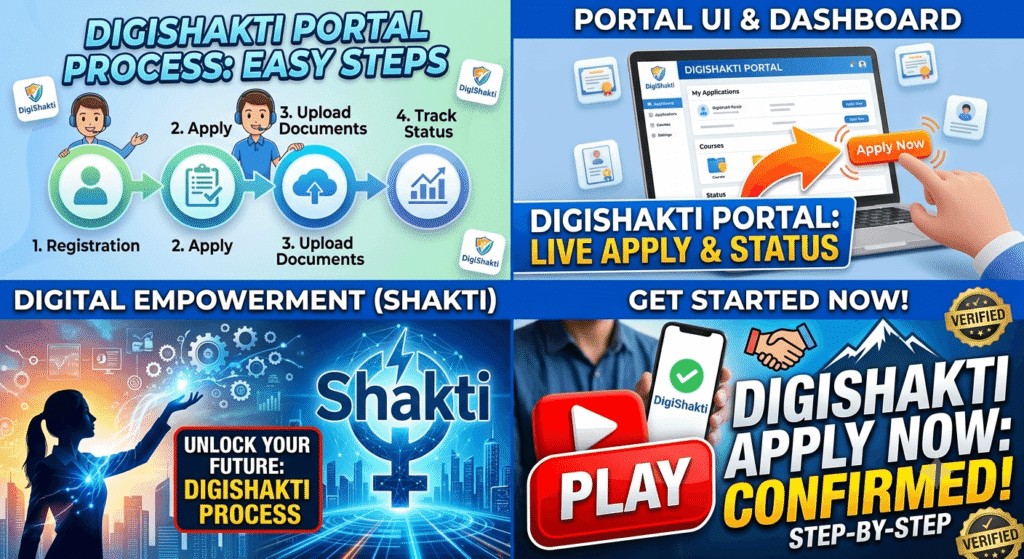
Many students get confused thinking they need to create a login ID on the DigiShakti portal. This is not correct. The process works like this:
- Your college uploads student data to the DigiShakti portal
- You visit the portal to search for your record using your enrollment number
- If your record appears, you complete e-KYC through the Meri Pehchaan portal
- After e-KYC verification, your name moves to the distribution list
- You receive SMS notifications about device distribution
Step-by-Step e-KYC Process
Step 1:
Open the official portal: digishakti.up.gov.in
Step 2:
Look for and click on “e-KYC through Meri Pehchaan Portal” button
Step 3:
From the dropdown menus, select:
- Your University/Board/Society/Council
- Your College/Institution name
- Your Nationality
Step 4:
Enter your Enrollment Number correctly. Double-check for any spelling or digit errors.
Step 5:
Enter the captcha code shown on the screen.
Step 6:
Click the “Search” button.
Step 7:
Based on your search result:
- If you see “Data is Under Verification”: Wait for 2-3 days and try again
- If you see your details with “Verify” option: Click “Verify through Login Using e-Pramaan MeriPehchaan”
- If you see “Invalid Enrollment Number”: Your college has not uploaded your data yet
Step 8:
You will be redirected to the Meri Pehchaan Portal:
- New user: Click “New user? Sign up for MeriPehchaan” – Enter mobile number, verify OTP, fill registration form with name, DOB, gender exactly as per Aadhaar – Enter Aadhaar number, select OTP medium, verify
- Existing user: Direct login and complete e-KYC verification
Step 9:
After e-KYC completion, your verification status will change to “Verified.”
Step 10:
Your data is then forwarded to the college and district nodal officers for device distribution.
Enrollment Number – How to Find It
The enrollment number is the most important piece of information for the DigiShakti process. Many students face issues because they don’t have the correct enrollment number.
Where to Find Your Enrollment Number
- College Records: Your enrollment number is printed on your admission form or student ID card. Check the documents you received when you took admission.
- College Nodal Officer: This is the officer in your college who handles the DigiShakti scheme. They can confirm your enrollment number and also verify if your data has been uploaded.
- College Website: Many colleges have a student corner or student portal where you can log in and find your enrollment number.
- Marksheets or Admit Cards: Your enrollment number is usually printed on exam admit cards and marksheets.
What If You Get “Invalid Enrollment Number”?
This is the most common problem students face. If your enrollment number is correct but still shows “Invalid Enrollment Number,” it means your college has not uploaded your data to the DigiShakti portal yet. You must immediately contact your college nodal officer and request them to upload the student data.
Status Check – How to Verify Your Name
Checking your status on the DigiShakti portal is straightforward. Follow these steps:
Step 1:
Go to digishakti.up.gov.in
Step 2:
Click on “e-KYC through Meri Pehchaan Portal”
Step 3:
Select your University from the dropdown list
Step 4:
Select your College name from the dropdown list
Step 5:
Enter your Enrollment Number
Step 6:
Enter the captcha code
Step 7:
Click “Search”
Understanding Status Messages
Understanding Your Application Status
| Status Displayed | What It Means | What You Should Do |
|---|---|---|
| Invalid Enrollment Number | College has not uploaded your data | Contact college nodal officer immediately |
| Data is Under Verification | Verification process in progress | Wait 2-3 days and check again |
| e-KYC Pending | e-KYC not yet completed | Complete e-KYC through Meri Pehchaan |
| e-KYC Verified | Verification complete | Wait for SMS or college notice about distribution |
| e-KYC Failed | Aadhaar and college records mismatch | Get correction done and redo e-KYC |
Note:
There is no separate PDF beneficiary list. If your record appears in the search with verified status, you are on the distribution list.
Device Distribution Process
After e-KYC verification, the device distribution process follows these steps:
Step 1: College Uploads Student Data
Your college or institution uploads student data to the DigiShakti portal. This is the first and most critical step. If your college doesn’t upload data, you cannot proceed further.
Step 2: Verification
Authorities verify your enrollment details, Aadhaar information, and eligibility criteria. Any duplicate entries are rejected during this stage.
Step 3: Device Allocation
Eligible students are shortlisted for device allocation. The type of device (tablet or smartphone) depends on government availability and institution category.
Step 4: Notification
You will receive SMS alerts on your registered mobile number. Additionally, your college will put up notices on notice boards and share updates through WhatsApp groups or student portals.
Step 5: Device Collection
Device distribution events are organized at the college campus. You must bring these documents:
- Aadhaar Card
- College ID Card
- Enrollment proof
- Passport size photos
You will need to sign an acknowledgment form when collecting the device.
Device Specifications
The tablets distributed under the DigiShakti scheme vary by batch. Here is a comparison:
Device Specification Evolution: 2021-22 vs 2026
| Feature | 2021-22 Batch | 2026 New Batch |
|---|---|---|
| Brand | Samsung, Acer, Lava | New vendors (under bidding process) |
| RAM | 2GB | 4GB (expected) |
| Storage | 32GB | 64GB (expected) |
| Software | Basic educational apps | Word, Excel, PowerPoint, Google Sheets |
| Display Size | 8-inch | 10-inch (expected) |
| Connectivity | Wi-Fi + 4G | Wi-Fi + 4G/5G (expected) |
Brands Currently Available:
- Samsung
- Acer
- Lava
Service centers are available for all three brands. You can find the nearest service center on the official portal.
College Participation
The DigiShakti scheme covers almost all recognized colleges and universities in Uttar Pradesh. Here are some prominent institutions:
- University of Lucknow – Multiple batches already distributed (PG students received tablets in October 2025)
- Banaras Hindu University (BHU), Varanasi – Eligible students covered
- Madan Mohan Malaviya University of Technology (MMMUT), Gorakhpur – Technical students covered
- Allahabad University, Prayagraj – Students eligible
- Dr. Ram Manohar Lohia Avadh University, Ayodhya – Covered
- Veer Bahadur Singh Purvanchal University, Jaunpur – Included
Types of Institutions Covered:
- Government Universities ✅ Yes
- Private Universities ✅ Yes (if recognized)
- Government Colleges ✅ Yes
- Private Aided Colleges ✅ Yes
- ITI ✅ Yes
- Polytechnic Institutes ✅ Yes
- Nursing Colleges ✅ Yes
- Medical Colleges ✅ Yes
- Skill Development Centers ✅ Yes
How to Check Your College’s Participation:
Visit digishakti.up.gov.in, click on “e-KYC through Meri Pehchaan Portal,” and search for your college in the dropdown list. If it appears, your college is registered for the scheme.
Common Problems and Solutions
Here are the most common problems students face and how to solve them:
Problem 1: “Invalid Enrollment Number” Error
What it means: Your college has not uploaded your data to the DigiShakti portal yet.
Solution: Contact your college nodal officer immediately. Ask them to upload the student data to the portal. This is the only way your enrollment number will become valid.
Problem 2: OTP Not Arriving
What it means: Either your Aadhaar-linked mobile number is inactive, or there is a network issue.
Solution: Check if your Aadhaar-linked mobile number is active. Visit an Aadhaar Seva Kendra to update your mobile number if needed. Alternatively, try using the email option for OTP if available.
Problem 3: “e-KYC Failed”
What it means: There is a mismatch between your Aadhaar details and college records (name, date of birth, or gender).
Solution: Both documents must have exactly matching details. Contact your college to correct the records, or update your Aadhaar details through the UIDAI portal. After correction, try e-KYC again.
Problem 4: Name Not in Beneficiary List
What it means: Either your data hasn’t been uploaded, or your e-KYC is incomplete.
Solution: Check if your college has uploaded data. If yes, complete your e-KYC immediately. If you see “Data is Under Verification,” wait for 2-3 days and check again.
Problem 5: Device Not Received After e-KYC
What it means: Distribution may be delayed due to batch scheduling or logistics.
Solution: Contact your college nodal officer to confirm the distribution schedule. Some colleges distribute devices in phases, so your batch may be later than others.
Problem 6: Aadhaar Name Mismatch
What it means: The name on your Aadhaar card differs from the name in your college records.
Solution: Both must match exactly. Get the correction done through your college administration or update your Aadhaar details.
Problem 7: Meri Pehchaan Password Forgotten
What it means: You created a Meri Pehchaan account earlier but can’t remember the password.
Solution: On the Meri Pehchaan login page, click “Forgot Password.” Enter your registered mobile number or email, verify OTP, and set a new password.
Problem 8: Duplicate Application Rejection
What it means: You have already received a device earlier or applied twice.
Solution: The scheme offers a one-time benefit. You cannot apply again if you already received a device.
Student Scenarios
Scenario 1: Rahul from Lucknow University – Successful Distribution
Rahul is an MA Political Science student at Lucknow University. His college uploaded student data on time. Rahul visited digishakti.up.gov.in, completed his e-KYC through Meri Pehchaan, and received an SMS within 15 days saying his tablet was ready. He collected it from the college campus with his Aadhaar and college ID. Reason for success: His college uploaded data promptly, and he completed e-KYC immediately.
Scenario 2: Priya from MMMUT Gorakhpur – Enrollment Number Issue
Priya is a B.Tech final year student at MMMUT Gorakhpur. She entered her enrollment number on the portal but got “Invalid Enrollment Number.” She contacted her college nodal officer and discovered her college hadn’t uploaded data yet. The officer uploaded data within a week, Priya completed e-KYC, and received her device three weeks later. Lesson learned: Always follow up with your college if you get “Invalid Enrollment Number.”
Scenario 3: Amit from BHU Varanasi – e-KYC Failure
Amit is a B.Sc student at BHU Varanasi. His e-KYC failed because his Aadhaar name was “Amit Kumar” while college records showed “Amit Kumar Singh.” He contacted his college administration, got the records corrected, and successfully completed e-KYC again. He received his tablet after one month. Lesson learned: Name, date of birth, and gender must exactly match across Aadhaar and college records.
Fraud Warning
Beware of These Scams:
- Fake Registration Sites: Any website asking for money as “registration fees” is fraudulent. The DigiShakti scheme is completely free.
- Middlemen Scams: No agent or middleman can guarantee that you will get a device. Do not pay anyone other than your college for anything related to this scheme.
- Fake Apps: There is no official DigiShakti mobile app. Only the official website digishakti.up.gov.in is authentic.
- Paid Help: Some individuals offer to “help” with e-KYC for money. The process is simple and free – do not pay anyone.
Always Remember:
- Use only digishakti.up.gov.in
- Students do not need to apply or register themselves
- No fees are required at any stage
- If anyone asks for money, report them to your college or the police
Official Helpline Information
Mission DigiShakti Support & Contact Points
| Contact Point | Details |
|---|---|
| First Contact | College Nodal Officer (available at your college) |
| Implementing Agency | UPDESCO (Uttar Pradesh Development Systems Corporation Ltd.) |
| Official Portal | digishaktiup.in |
| Direct e-KYC Link | digishaktiup.in/app/EPramaan/SendServiceToEpramaan |
| Service Centers | Samsung, Acer, Lava (list available on portal) |
Note:
The government has not issued any toll-free number for the DigiShakti scheme yet. Always use the official portal for queries and complaints.
Official Source:
Uttar Pradesh government’s Infrastructure and Industrial Development Department manages this scheme. All information on this page has been verified from official sources.
Frequently Asked Questions
Q1: Do students need to register themselves on the DigiShakti portal?
No. Students do not need to register themselves. Colleges and institutions upload student data to the portal. Students only need to complete the e-KYC process.
Q2: How do I log in to the DigiShakti portal?
There is no login ID for students. Visit the portal, click on “e-KYC through Meri Pehchaan Portal,” search using your enrollment number, and complete e-KYC.
Q3: I forgot my password – what should I do?
Since students don’t have a DigiShakti login ID, there is no password to reset. If you forgot your Meri Pehchaan password, use the “Forgot Password” option on that portal.
Q4: Who is eligible for this scheme?
Students who are UP residents, enrolled in UG/PG/Technical/Diploma/Medical/ITI/Skill Development courses, with annual family income below ₹2 lakh, and age between 18-35 years.
Q5: How will I receive my tablet or smartphone?
Devices are distributed at college campus events. You will receive SMS and college notices with details. Bring your Aadhaar, college ID, and enrollment proof to collect the device.
Q6: How do I check my status on the portal?
Go to digishakti.up.gov.in, click on “e-KYC through Meri Pehchaan Portal,” select your university and college, enter your enrollment number, and click “Search.”
Q7: Why is e-KYC mandatory?
e-KYC is mandatory because Aadhaar-based identity verification is required before device distribution. Without e-KYC, you will not receive any device.
Q8: Are private college students eligible?
Yes, if the private college is recognized and located in Uttar Pradesh, students are eligible.
Q9: Can I get more than one device?
No. This is a one-time benefit. Each student receives only one device (either a tablet or a smartphone).
Q10: How long does it take to receive the device after e-KYC?
The timeline depends on your college’s distribution schedule. Some colleges distribute within 1-2 months, while others may take longer. Check with your college nodal officer.
Q11: What if I didn’t receive my tablet?
First, contact your college nodal officer. They are the first point of contact. If the issue isn’t resolved, approach UPDESCO or file a complaint through the official portal’s Service Center.
Q12: My name is on the portal but the college didn’t give me a tablet – what should I do?
Check the distribution schedule with your college nodal officer. Some colleges distribute devices in phases. If there is a delay, escalate to UPDESCO or the Higher Education Department.
Q13: What if my device stops working?
Visit the “Service Center” section on the official portal. Service centers for Samsung, Acer, and Lava devices are available. Take your device with the documentation provided at the time of distribution.
Q14: What if my college hasn’t uploaded my data?
This is a common issue. Contact your college nodal officer or administration immediately. They are required to upload student data to the DigiShakti portal.
Q15: Are ITI students eligible for this scheme?
Yes, students enrolled in ITI programs are eligible for the DigiShakti scheme.
Conclusion
The DigiShakti Yojana is a transformative initiative by the Uttar Pradesh government that provides free digital devices to students across the state. With over 1 crore students already benefiting and 25 lakh more tablets being procured, this scheme continues to bridge the digital divide in education.
What You Need to Do:
- Confirm with your college that your data has been uploaded to the portal
- Visit digishakti.up.gov.in
- Complete your e-KYC process
- Wait for SMS and college notices
- Keep your documents ready for device collection
Important Reminders:
- The scheme is completely free – do not pay anyone
- Students do not need to create login IDs or register themselves
- e-KYC is mandatory for device distribution
- Always use the official portal digishakti.up.gov.in
Official Portal: digishaktiup.in
Direct e-KYC Link: digishaktiup.in/app/EPramaan/SendServiceToEpramaan
Related Articles:
- UP Free Laptop Yojana 2026 — Complete Guide
- UP Scholarship Portal 2026: Registration, Status Check
- UP Berojgari Bhatta 2026: Eligibility, Application Process