Introduction
DigiShakti Portal: Login, Registration & Status Check
The Uttar Pradesh government is actively providing free tablets and smartphones to students under the Swami Vivekanand Yuva Sashaktikaran Yojana (Mission DigiShakti). This scheme, launched by Chief Minister Yogi Adityanath, aims to equip students with digital tools to enhance their education and skills.
According to official data, nearly 1 crore students have already benefited from this initiative, with 46.75 lakh gadgets distributed between 2021 and 2023 alone. The scheme continues for the 2025-26 fiscal year, and the government has approved the procurement of 25 lakh new tablets for distribution.
DigiShakti Login Kaise Karein: Step-by-Step Guide
Scheme Overview
| Particulars | Details |
|---|---|
| Scheme Name | Swami Vivekanand Yuva Sashaktikaran Yojana (Mission DigiShakti) |
| Launched By | Uttar Pradesh Government – Chief Minister Yogi Adityanath[cite: 1] |
| Implementing Agency | UPDESCO (IT & Electronics Department)[cite: 1] |
| Benefits | Free Tablet or Smartphone[cite: 1] |
| Official Portal | digishakti.up.gov.in[cite: 1] |
| eKYC Portal | Meri Pehchaan (National Single Sign-On)[cite: 1] |
Eligibility Criteria: Who Can Get a DigiShakti Device?
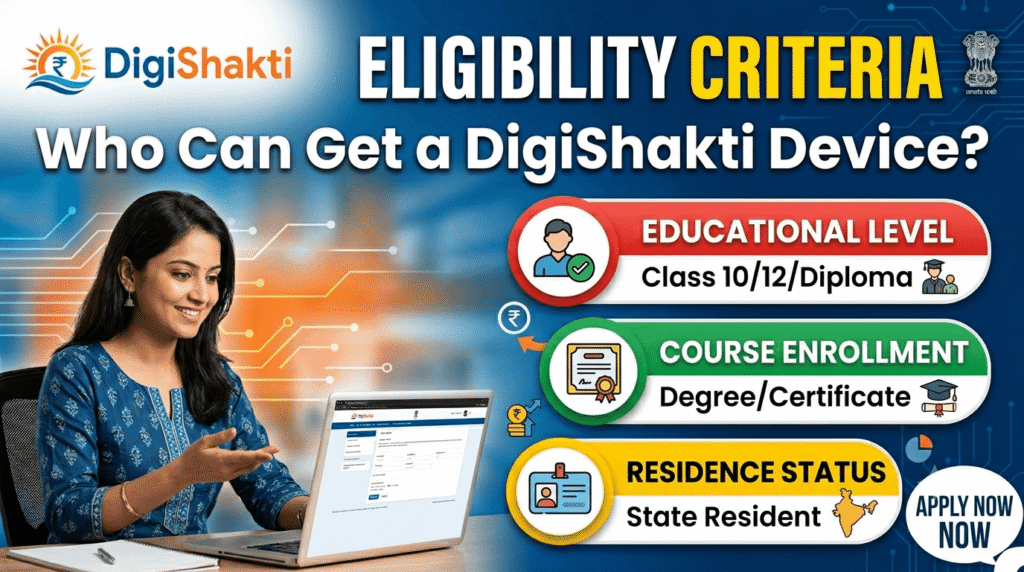
To avail of a free tablet or smartphone under this scheme, you must meet the following criteria :
- Residency: Must be a permanent resident of Uttar Pradesh.
- Course Enrollment: Must be enrolled in one of the following from a recognized government or private institution in UP: Graduation (BA, BSc, BCom), Post-Graduation (MA, MSc, MCom), Technical Education (B.Tech, M.Tech), Diploma or Polytechnic courses, Medical/Nursing/Paramedical courses, or ITI (Industrial Training Institute) .
- Family Income: The annual family income must be less than ₹2 Lakh .
- Age Limit: Generally for students aged 18–35 years .
- One-Time Benefit: Each eligible student can receive only one free tablet or smartphone under this scheme .
Important Note: Students whose data has not been uploaded by their college to the DigiShakti portal cannot proceed with the eKYC process. Additionally, if your Aadhaar details (name, date of birth, gender) do not match your college records, the eKYC will fail .
Required Documents for eKYC and Device Collection
Keep the following documents ready for the eKYC process and for collecting your device :
✅ Aadhaar Card: Most important for eKYC verification. Must match college records.
✅ College ID Card: Required at the time of device collection.
✅ Enrollment Number: Obtain from your college. This is essential for checking your status and completing eKYC on the portal (click here for help finding your enrollment number).
✅ Active Mobile Number: Must be linked to Aadhaar for receiving OTP.
✅ Passport Size Photograph: May be required by some colleges during distribution.
Step-by-Step Guide: DigiShakti Portal eKYC Process
Please note that students do not need to register themselves on the DigiShakti portal, as your college or university is responsible for uploading your data. If you are unsure how to identify or select your institution, you can find guidance here.
Once your data has been uploaded by your institution, you must complete the eKYC (Aadhaar verification) process to remain eligible. Follow these steps carefully:
Step 1: Obtain Your Enrollment Number
Contact your college’s academic section or examination branch to get your Enrollment Number. This is a crucial first step . Without this number, you cannot proceed.
Step 2: Visit the Official DigiShakti Portal
Go to the official website: https://digishakti.up.gov.in .
Step 3: Access eKYC Through Meri Pehchaan
On the homepage, click on the “e-KYC through MeriPehchaan Portal” button .
Step 4: Search for Your Student Details
On the next screen, select your University and College from the dropdown menus. Enter your Enrollment Number and the Captcha. Then click the “Search” button .
Step 5: Check Your Status and Initiate eKYC
If your data is available on the portal, your details will appear on the screen .
- If the “Aadhaar e-KYC Status” is Pending, click on the “Verify through the Login Using e-Pramaan MeriPehchaan” button .
- If you see the message “Your data verification is Under Process”, it means your data is pending for Department Lock. Please wait a few days and try again .
Step 6: Sign Up or Sign In to Meri Pehchaan
You will be redirected to the Meri Pehchaan portal .
- If you already have an account, click Sign-In.
- If you are a new user, click “New user? Signup for MeriPehchaan” .
Step 7: Complete Aadhaar eKYC Verification
Once signed in, enter your Aadhaar Number and choose the method to receive the OTP (Mobile or Email). Enter the OTP, accept the terms and conditions, and submit .
Step 8: Confirm Successful Verification
verify your updated status, please return to the official DigiShakti student search page
and enter your credentials again. Once you have logged in with your enrollment number, you should see your Aadhaar eKYC Status displayed as “Verified,” along with the specific date and time of your successful verification. For additional guidance on navigating the portal, you can refer to this helpful guide.
How to Check Device Distribution Status
After completing your eKYC, you can track your status and device distribution progress through the same DigiShakti portal :
- Visit the official portal:
https://digishakti.up.gov.in. - Click on “Student Corner” or “e-KYC through MeriPehchaan”.
- Select your University, College, enter your Enrollment Number, and click Search.
- Your details and Aadhaar eKYC Status will be displayed.
The table below explains the different statuses you might see:
| Status | Meaning | What to Do? |
|---|---|---|
| Pending | Your eKYC is not yet complete. | Click “Verify through MeriPehchaan” to complete it. |
| Verified | Your eKYC is complete. | Wait for your college to announce the device distribution date. |
| Failed | Your Aadhaar details do not match your college records. | Contact your College Nodal Officer to correct your details in the portal. |
| Invalid Enrollment Number | Your college has not uploaded your data. | Contact your College Nodal Officer immediately to get your data uploaded. |
| Under Process | Your data is pending for Department Lock. | Wait a few days and check again. |
Latest Updates (2025-2026)
- ✅ Scheme Active: The DigiShakti scheme remains active for the 2025-26 fiscal year .
- ✅ eKYC Mandatory: Aadhaar-based eKYC on the DigiShakti portal is now compulsory. Students who fail to complete it will not receive their devices .
- ✅ Distribution Ongoing: Colleges are actively organizing events to distribute devices to eligible students .
- ✅ New Batch Approved: The UP government has approved the procurement of 25 lakh new tablets for distribution .
Common Problems and Solutions
Problem 1: “Invalid Enrollment Number” Error
Solution: This means your college has not yet uploaded your data. Contact your college’s Nodal Officer immediately and request them to upload your details .
Problem 2: eKYC Failed or Mismatch Error
Solution: Your Aadhaar details (name, gender, or date of birth) do not match your college records. Visit your college administration and ask them to update your details on the portal .
Problem 3: Not Receiving OTP
Solution: Ensure the mobile number you are using is active and is the one linked to your Aadhaar . Wait for a few minutes before trying to resend the OTP.
Problem 4: “Under Process” Status for a Long Time
Solution: This means your data is pending for “Department Lock” at the government level . This process takes time. Be patient and check again after a few days.
Problem 5: Device Not Received Even After Status Shows “Verified”
Solution: Distribution happens in phases. If your status is “Verified,” your college will inform you about the date and venue for device collection . Contact your College Nodal Officer for an update on the distribution schedule.
Fraud Warning: Beware of Scams
| Fake Activity | How to Stay Safe |
|---|---|
| Fake Registration Sites | Only use the official portal: digishakti.up.gov.in. Do not enter your personal details on any other website. |
| Middlemen/Dalals | This scheme is completely free. Do not pay anyone who promises to “get you a device” or “expedite the process.” |
| Fake Apps | The government has not released any official “DigiShakti” app. Avoid downloading any such apps from the Play Store. |
| OTP Sharing | Never share your OTP with anyone. Only enter it on the official portal. |
Helpline and Grievance Redressal
| Contact Point | Details |
|---|---|
| College Nodal Officer | Your first point of contact. They can assist with data upload and status updates . |
| Official Portal | https://digishakti.up.gov.in |
| Implementing Agency | UPDESCO (IT & Electronics Department) |
Frequently Asked Questions (FAQs)
1. What is the DigiShakti Portal?
It is the official platform of the Uttar Pradesh government to manage the distribution of free tablets and smartphones to students under the Swami Vivekanand Yuva Sashaktikaran Yojana .
2. What is the official website for the DigiShakti Portal?
The official website is digishakti.up.gov.in .
3. How can I apply for the DigiShakti scheme?
You do not need to apply directly. Your college uploads your data to the portal. You are only required to complete the eKYC process .
4. What are the eligibility criteria for the UP Free Tablet Scheme 2026?
You must be a UP resident, enrolled in a graduation/diploma/technical course, and have a family income below ₹2 lakh per annum .
5. What documents are needed for registration and eKYC?
You will need your Aadhaar Card, College ID, Enrollment Number, and an active mobile number linked to Aadhaar .
6. How do I complete the eKYC on the DigiShakti portal?
Visit the portal, click on “e-KYC through MeriPehchaan,” search with your Enrollment Number, and follow the steps to sign up on Meri Pehchaan and verify with your Aadhaar OTP .
7. Is eKYC mandatory for getting the device?
Yes, eKYC is now mandatory. According to official notifications from universities like CSJM Kanpur, students who do not complete eKYC will not receive their devices .
8. How can I check my status on the portal?
On the DigiShakti portal, use the “Student Corner” or “e-KYC through MeriPehchaan” option to search with your Enrollment Number and check your eKYC status .
9. What should I do if my name is not on the beneficiary list?
Contact your college’s Nodal Officer immediately. Your name will only appear after your data is uploaded by the college .
10. Can students from private colleges get a device?
Yes, students from both government and private colleges are eligible .
11. My status shows “Verified,” but I haven’t received my tablet. What should I do?
The distribution is done in phases. Stay in touch with your college Nodal Officer to know the distribution date and venue. The college will also inform you via SMS .
12. Where can I complain if I don’t get my device?
Your first point of contact is your college’s Nodal Officer. If the issue is not resolved, you can escalate it to the university’s grievance cell or UPDESCO .
Conclusion: Your Next Steps
Getting your free tablet or smartphone under the DigiShakti scheme is a straightforward process. Follow these steps:
- Obtain your Enrollment Number from your college.
- Visit the official website:
digishakti.up.gov.in. - Complete your eKYC through the Meri Pehchaan portal.
- Check your status regularly and wait for your college’s announcement for device distribution.
- Avoid scams – the scheme is completely free.
If you face any issues, always contact your college Nodal Officer first.
Official Portal:
https://digishakti.up.gov.in
eKYC Portal: Meri Pehchaan (National Single Sign-On)
This information has been compiled by the digiyojana.com team, verified using official sources including digishakti.up.gov.in, the UP Higher Education Department, and CSJM University notifications.
Suggested Related Articles
- UP Free Laptop Yojana 2026 – More student-focused schemes from the UP government.
- UP Scholarship Portal 2026 – Complete guide to scholarship registration and status checks.
- Aadhaar eKYC Complete Guide – Everything you need to know about Aadhaar verification.
- DigiShakti Status Check Kaise Karein? [Updated Guide]